Create Original Clinical Document: Difference between revisions
Mchris44ucy (talk | contribs) No edit summary |
Mchris44ucy (talk | contribs) No edit summary |
||
| (2 intermediate revisions by the same user not shown) | |||
| Line 1: | Line 1: | ||
__NOTOC__ | __NOTOC__ | ||
<gallery widths="600px" heights="200px"> | <gallery widths="600px" heights="200px"> | ||
File:Patient Menu Select OrCD (EN).png | Figure 6.8. | File:Patient Menu Select OrCD (EN).png | Figure 6.8.10: Selecting the Original Clinical Document. | ||
File:Create OrCD General Screen (EN).png | Figure 6.8. | File:Create OrCD General Screen (EN).png | Figure 6.8.11: Create Original Clinical Document. | ||
</gallery> | </gallery> | ||
Each subsection of the Original Clinical Documents (OrCDs) module provides an overview table displaying the documents belonging to that specific category. The user can review existing entries and, by selecting the "Add" button, upload and register a new Original Clinical Document for the selected patient. The newly added document will then appear in the corresponding category table. | |||
==Add Laboratory Results Reports== | ==Add Laboratory Results Reports== | ||
<gallery widths="500px" heights="250px"> | <gallery widths="500px" heights="250px"> | ||
File:Create OrCD General Screen LRR (EN).png | Figure 6.8. | File:Create OrCD General Screen LRR (EN).png | Figure 6.8.12: Add Original Clinical Document Preview - '''Laboratory Results Reports'''. | ||
File:Create OrCD LRR Table.png | Figure 6.8. | File:Create OrCD LRR Table.png | Figure 6.8.13: Add Laboratory Results Reports Overview. | ||
File:Create OrCD LRR Modal.png | Figure 6.8. | File:Create OrCD LRR Modal.png | Figure 6.8.14: Add Laboratory Results Reports Modal. | ||
</gallery> | </gallery> | ||
| Line 16: | Line 18: | ||
<gallery widths="500px" heights="250px"> | <gallery widths="500px" heights="250px"> | ||
File:Create OrCD General Screen HDR (EN).png | Figure 6.8. | File:Create OrCD General Screen HDR (EN).png | Figure 6.8.15: Add Original Clinical Document Preview - '''Hospital Discharge Reports'''. | ||
File:Create OrCD HDR Table.png | Figure 6.8. | File:Create OrCD HDR Table.png | Figure 6.8.16: Add Hospital Discharge Reports Overview. | ||
File:Create OrCD HDR Modal.png | Figure 6.8. | File:Create OrCD HDR Modal.png | Figure 6.8.17: Add Hospital Discharge Reports Modal. | ||
</gallery> | </gallery> | ||
| Line 24: | Line 26: | ||
<gallery widths="500px" heights="250px"> | <gallery widths="500px" heights="250px"> | ||
File:Create OrCD General Screen MIR (EN).png | Figure 6.8. | File:Create OrCD General Screen MIR (EN).png | Figure 6.8.18: Add Original Clinical Document Preview - '''Medical Imaging Reports'''. | ||
File:Create OrCD MIR Table.png | Figure 6.8. | File:Create OrCD MIR Table.png | Figure 6.8.19: Add Medical Imaging Reports Overview. | ||
File:Create OrCD MIR Modal.png | Figure 6.8. | File:Create OrCD MIR Modal.png | Figure 6.8.20: Add Medical Imaging Reports Modal. | ||
</gallery> | </gallery> | ||
| Line 32: | Line 34: | ||
<gallery widths="500px" heights="250px"> | <gallery widths="500px" heights="250px"> | ||
File:Create OrCD General Screen MI (EN).png | Figure 6.8. | File:Create OrCD General Screen MI (EN).png | Figure 6.8.21: Add Original Clinical Document Preview - '''Medical Images'''. | ||
File:Create OrCD MI Table.png | Figure 6.8. | File:Create OrCD MI Table.png | Figure 6.8.22: Add Medical Images Overview. | ||
File:Create OrCD MI Modal.png | Figure 6.8. | File:Create OrCD MI Modal.png | Figure 6.8.23: Add Medical Images Modal. | ||
</gallery> | </gallery> | ||
[[Patient Menu | Back]] | [[Patient Menu | Back]] | ||
Latest revision as of 05:41, 23 June 2026
-
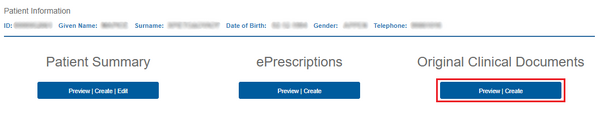
Figure 6.8.10: Selecting the Original Clinical Document.
-
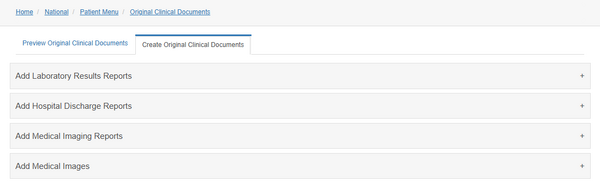
Figure 6.8.11: Create Original Clinical Document.
.png)
.png)
Each subsection of the Original Clinical Documents (OrCDs) module provides an overview table displaying the documents belonging to that specific category. The user can review existing entries and, by selecting the "Add" button, upload and register a new Original Clinical Document for the selected patient. The newly added document will then appear in the corresponding category table.
Add Laboratory Results Reports
-
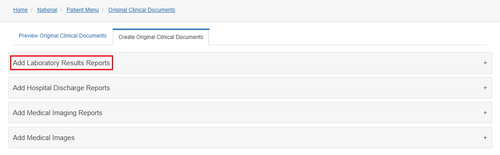
Figure 6.8.12: Add Original Clinical Document Preview - Laboratory Results Reports.
-
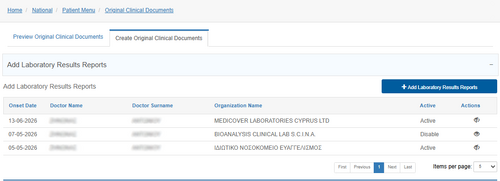
Figure 6.8.13: Add Laboratory Results Reports Overview.
-
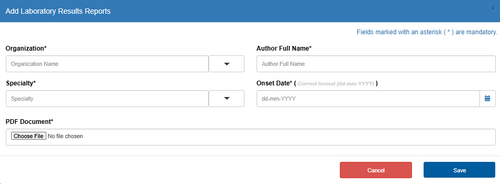
Figure 6.8.14: Add Laboratory Results Reports Modal.
.png)


Add Hospital Discharge Reports
-
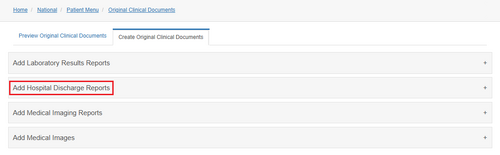
Figure 6.8.15: Add Original Clinical Document Preview - Hospital Discharge Reports.
-
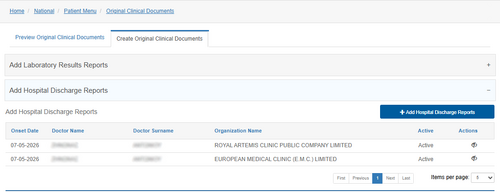
Figure 6.8.16: Add Hospital Discharge Reports Overview.
-
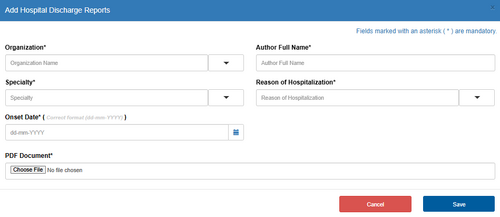
Figure 6.8.17: Add Hospital Discharge Reports Modal.
.png)


Add Medical Imaging Reports
-
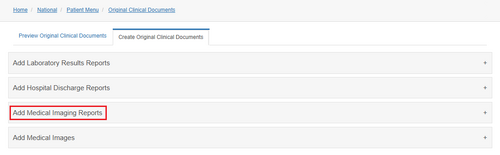
Figure 6.8.18: Add Original Clinical Document Preview - Medical Imaging Reports.
-
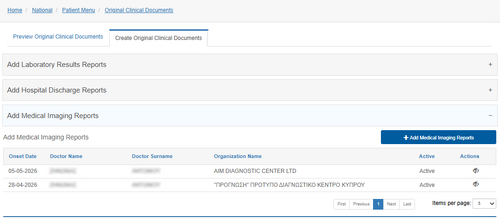
Figure 6.8.19: Add Medical Imaging Reports Overview.
-
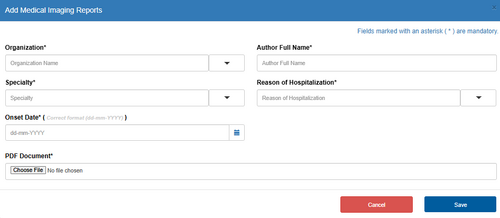
Figure 6.8.20: Add Medical Imaging Reports Modal.
.png)


Add Medical Images
-
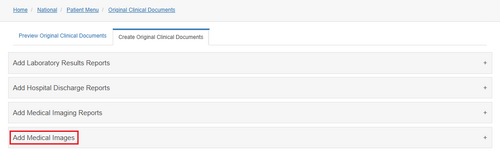
Figure 6.8.21: Add Original Clinical Document Preview - Medical Images.
-
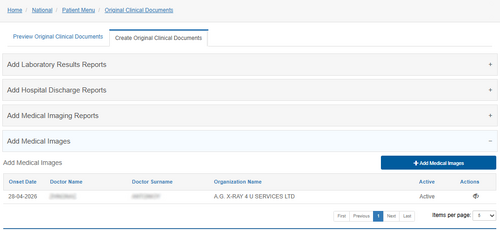
Figure 6.8.22: Add Medical Images Overview.
-
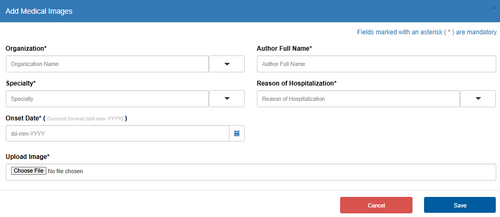
Figure 6.8.23: Add Medical Images Modal.
.png)

