Physician: Difference between revisions
Mchris44ucy (talk | contribs) No edit summary |
Mchris44ucy (talk | contribs) No edit summary |
||
| Line 8: | Line 8: | ||
<gallery widths="600px" heights="300px"> | <gallery widths="600px" heights="300px"> | ||
File:Physician ( | File:Physician (EN).png | Figure 8.1.0: Instructions for Installing the Digital Certificate for Cross-Border eHealth Services. | ||
File:Physiacian Download Cert 1 ( | File:Physiacian Download Cert 1 (EN).png | Figure 8.1.1: Generating a New Digital Certificate. | ||
File:Physician SMS ( | File:Physician SMS (EN).png | Figure 8.1.2: Delivery of the Digital Certificate Installation Code to the User’s Mobile Device via SMS. | ||
File:Physiacian Download Cert 2 ( | File:Physiacian Download Cert 2 (EN).png | Figure 8.1.3: Digital Certificate Successfully Downloaded. | ||
</gallery> | </gallery> | ||
| Line 17: | Line 17: | ||
<gallery widths="600px" heights="350px"> | <gallery widths="600px" heights="350px"> | ||
File:Physician Install Cert ( | File:Physician Install Cert (EN).png | Figure 8.1.4: Selection of the Installation Guide Based on the User’s Operating System. | ||
File:Physician Install Cert Windows ( | File:Physician Install Cert Windows (EN).png | Figure 8.1.5: Installation Guide for the Digital Certificate (WINDOWS). | ||
File:Physician Install Cert Mac ( | File:Physician Install Cert Mac (EN).png | Figure 8.1.6: Installation Guide for the Digital Certificate (MAC OS). | ||
</gallery> | </gallery> | ||
| Line 26: | Line 26: | ||
<gallery widths="600px" heights="350px"> | <gallery widths="600px" heights="350px"> | ||
File:Physician Test Cert Success (EN).png | Figure 8.1.7: Digital Certificate Successfully Installed. | File:Physician Test Cert Success (EN).png | Figure 8.1.7: Digital Certificate Successfully Installed. | ||
File:Physician Test Cert Failed ( | File:Physician Test Cert Failed (EN).png | Figure 8.1.8: Digital Certificate Installation Failed. | ||
</gallery> | </gallery> | ||
[[Access Management | Back]] | [[Access Management | Back]] | ||
Latest revision as of 06:51, 27 October 2025
Through the registration platform, the physician is required to follow the prescribed steps for installing the digital certificate. This procedure is essential for obtaining access to the Cyprus Cross-Border eHealth Services Platform. The installation of the digital certificate is carried out once every two years to ensure the integrity, security, and proper identification of the user within the system.
Procedure for the Issuance and Installation of the Digital Certificate
Procedure for the Issuance of a Digital Certificate
-
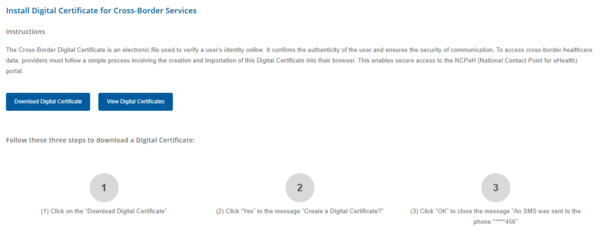
Figure 8.1.0: Instructions for Installing the Digital Certificate for Cross-Border eHealth Services.
-
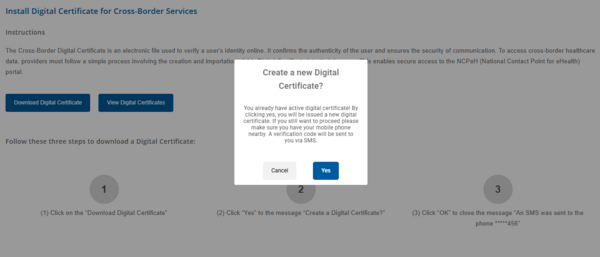
Figure 8.1.1: Generating a New Digital Certificate.
-
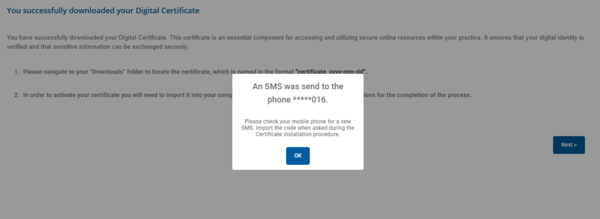
Figure 8.1.2: Delivery of the Digital Certificate Installation Code to the User’s Mobile Device via SMS.
-
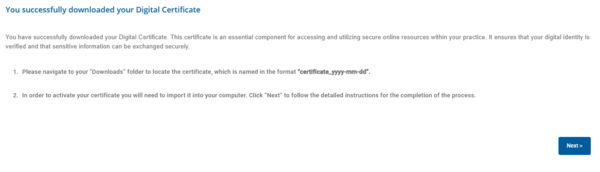
Figure 8.1.3: Digital Certificate Successfully Downloaded.
.png)
.png)
.png)
.png)
Digital Certificate Installation Procedure
-
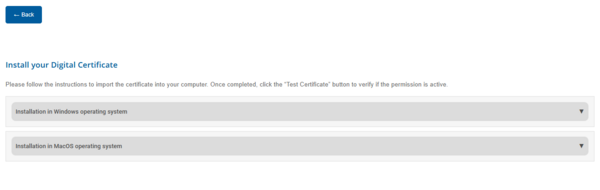
Figure 8.1.4: Selection of the Installation Guide Based on the User’s Operating System.
-
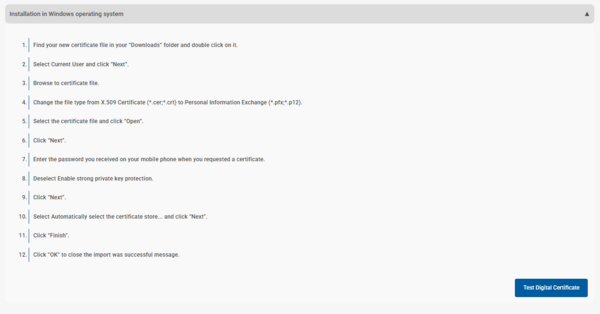
Figure 8.1.5: Installation Guide for the Digital Certificate (WINDOWS).
-
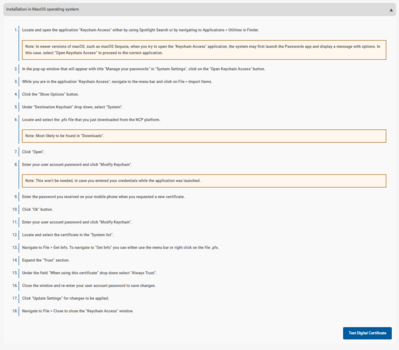
Figure 8.1.6: Installation Guide for the Digital Certificate (MAC OS).
.png)
.png)
.png)
Upon successful completion of all the aforementioned steps, the user is required to verify the digital certificate using the available verification tool. This action ensures that the issuance and installation process has been completed correctly and that the user now holds active and secure access to the Cross-Border eHealth Services of the Republic of Cyprus.
-
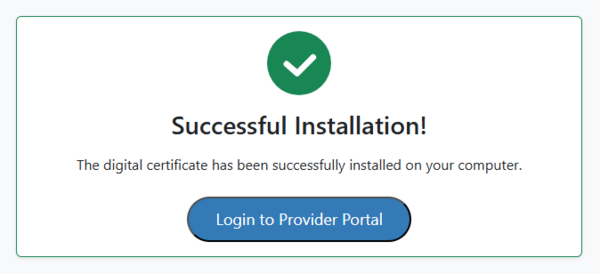
Figure 8.1.7: Digital Certificate Successfully Installed.
-
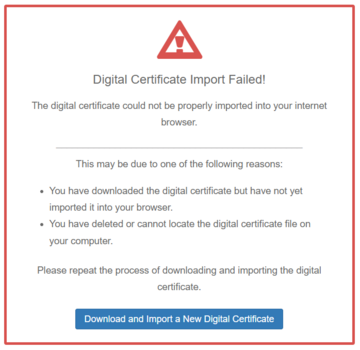
Figure 8.1.8: Digital Certificate Installation Failed.
.png)
.png)