Login to Platform: Difference between revisions
Jump to navigation
Jump to search
No edit summary |
No edit summary |
||
| Line 19: | Line 19: | ||
<gallery widths="250px" heights="370px"> | <gallery widths="250px" heights="370px"> | ||
File: CY_Login_1.1_EN.JPG | Figure 2. | File: CY_Login_1.1_EN.JPG | Figure 2.8: CY Login page. Enter your credentials. | ||
File: CY_Login_2FA.png | Figure 2. | File: CY_Login_2FA.png | Figure 2.9: Mobile Two Factor Authentication. | ||
File: CY_Login_2.1_EN.png | Figure 2. | File: CY_Login_2.1_EN.png | Figure 2.10: CY Login page. Personal Information Consent. | ||
</gallery> | </gallery> | ||
<gallery widths="500px" heights="250px"> | <gallery widths="500px" heights="250px"> | ||
File: NCPeH HomePage_version1.png | Figure 2. | File: NCPeH HomePage_version1.png | Figure 2.11: NCPeH Platform Home Page. | ||
</gallery> | </gallery> | ||
Revision as of 06:47, 24 July 2025
The homepage provides clear guidance for both new and existing users..
- New Users: Please follow the three predefined steps to successfully complete the login process and access the Electronic Cross-Border Health Services.
- Existing Users: Simply log in to your account to continue using the services without interruption.
For New Users
Once the Physician / Pharmacist is certified and authorized to access the system, he/she can search for their patients and monitor/update or retrieve patient summary, the associated medical information and e-Prescription details.
Physicians / Pharmacists are able to perform a search after they enter their username and password via GOV.CY, https://www.gov.cy/.
-
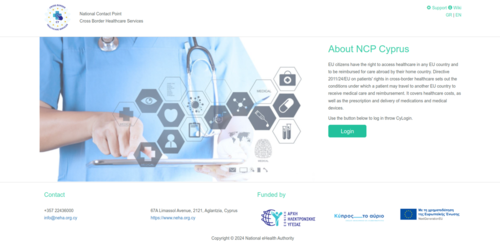
Figure 2.0: Login page.

Existing Users
How to enable Two-Factor Authentication
-
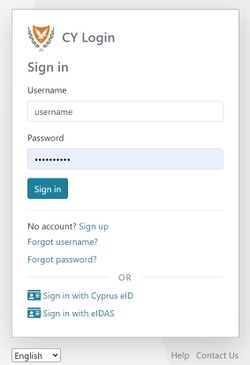
Figure 2.8: CY Login page. Enter your credentials.
-
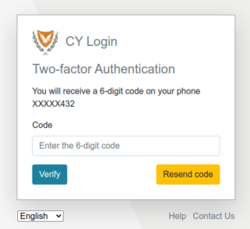
Figure 2.9: Mobile Two Factor Authentication.
-
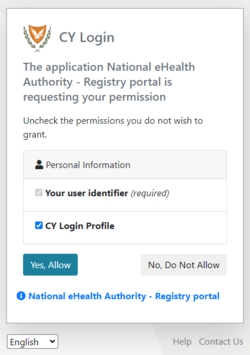
Figure 2.10: CY Login page. Personal Information Consent.


-
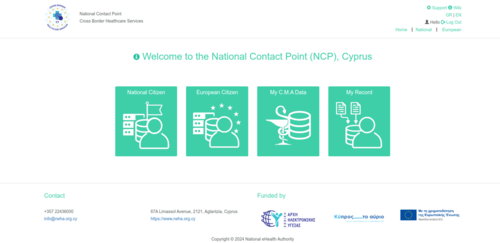
Figure 2.11: NCPeH Platform Home Page.
