Search Patient: Difference between revisions
No edit summary |
|||
| Line 4: | Line 4: | ||
</gallery> | </gallery> | ||
== | ==Providing Electronic Cross-Border Healthcare Services to New Users== | ||
To create a Patient Summary or issue an Electronic Prescription for a Cypriot citizen, the Healthcare Professional searches for the patient in the system using their identification details or ARC number, along with their date of birth. A unique One-Time Password (OTP) is then sent to the patient, who provides it to the Healthcare Professional. The provision of the OTP is considered as the patient’s explicit consent to proceed with the creation of the Patient Summary or the issuance of the Electronic Prescription. | |||
<gallery widths="500px" heights="150px"> | <gallery widths="500px" heights="150px"> | ||
Revision as of 10:33, 24 July 2025
-
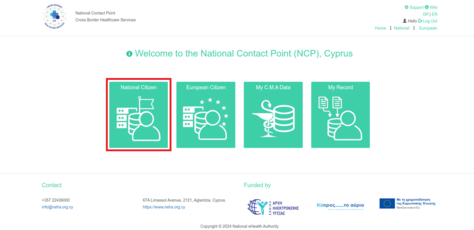
Figure 2.1: NCPeH Platform Home Page. Select "National Citizen" to search patient at national level.
-

Figure 2.2: To search for a patient, the physician or pharmacist must enter the patient's ID number and date of birth.


Providing Electronic Cross-Border Healthcare Services to New Users
To create a Patient Summary or issue an Electronic Prescription for a Cypriot citizen, the Healthcare Professional searches for the patient in the system using their identification details or ARC number, along with their date of birth. A unique One-Time Password (OTP) is then sent to the patient, who provides it to the Healthcare Professional. The provision of the OTP is considered as the patient’s explicit consent to proceed with the creation of the Patient Summary or the issuance of the Electronic Prescription.
-
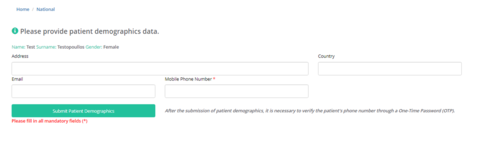
Figure 2.3: In order to create the initial patient record, the physician must enter the patient's ID number, date of birth and other demographic information.
-
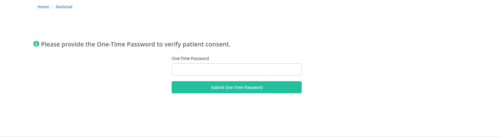
Figure 2.4: One-Time Password (OTP) Field.
-
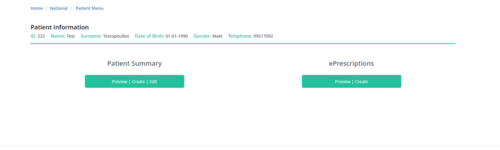
Figure 2.5: Patient Profile.


Existing User - Patient
If the user has previously utilized cross-border services, the doctor will not need to refill the demographic fields and will be directed straight to the screen displaying the patient's profile.
-
Figure 2.6: Patient Profile.